
TL;DR: Avoid Common CAD to PDF Conversion Risks
Converting CAD files to PDFs often flattens design layers, leaves the model data behind and gives you little control over where the file goes next, which puts your intellectual property at risk. Engineers using Autodesk Inventor can tackle these challenges by checking export settings, sharing PDFs through controlled channels, keeping the native files in their own systems, and registering their designs with BORIS, which records a fingerprint and timestamp on the blockchain as dated proof of ownership.
🔍 Curious about how CAD file formats and metadata impact security? Explore CAD File Formats, Metadata, and Privacy for expert knowledge on protecting your designs.
CAD to PDF Conversion Limitations: Challenges Every Designer Must Navigate
How often have you converted a rich and detailed CAD file to PDF, only to discover that crucial layers or details were stripped away? CAD to PDF conversion is an essential process for designers using tools like Autodesk Inventor, particularly in the manufacturing and engineering industries, but this seemingly simple task is riddled with challenges that could put your intellectual property at risk.
The core issue lies in how the digital fidelity of your designs interacts with the limitations of the PDF format. While PDFs provide accessibility and platform independence, especially for stakeholders who lack CAD expertise, they fall short in preserving complex design elements. This creates a potential IP vulnerability for engineers and companies heavily dependent on precise technical documentation.
“CAD to PDF conversion is not just a technical necessity; it’s an IP risk management decision.”
Violetta Bonenkamp, CEO of CADChain
Protect Your Intellectual Property with BORIS for Autodesk Inventor!
Generate blockchain-certified proof of ownership: BORIS records a fingerprint and timestamp of each design version you register. Perfect for engineers safeguarding their IP.
👉 Learn how to convert CAD files without losing data
What Are the Major Limitations of CAD to PDF Conversion?
Converting CAD files into PDFs might seem straightforward at first glance, but the process often creates inconsistencies and limitations that compromise design integrity. Here are the primary challenges designers and engineers encounter:
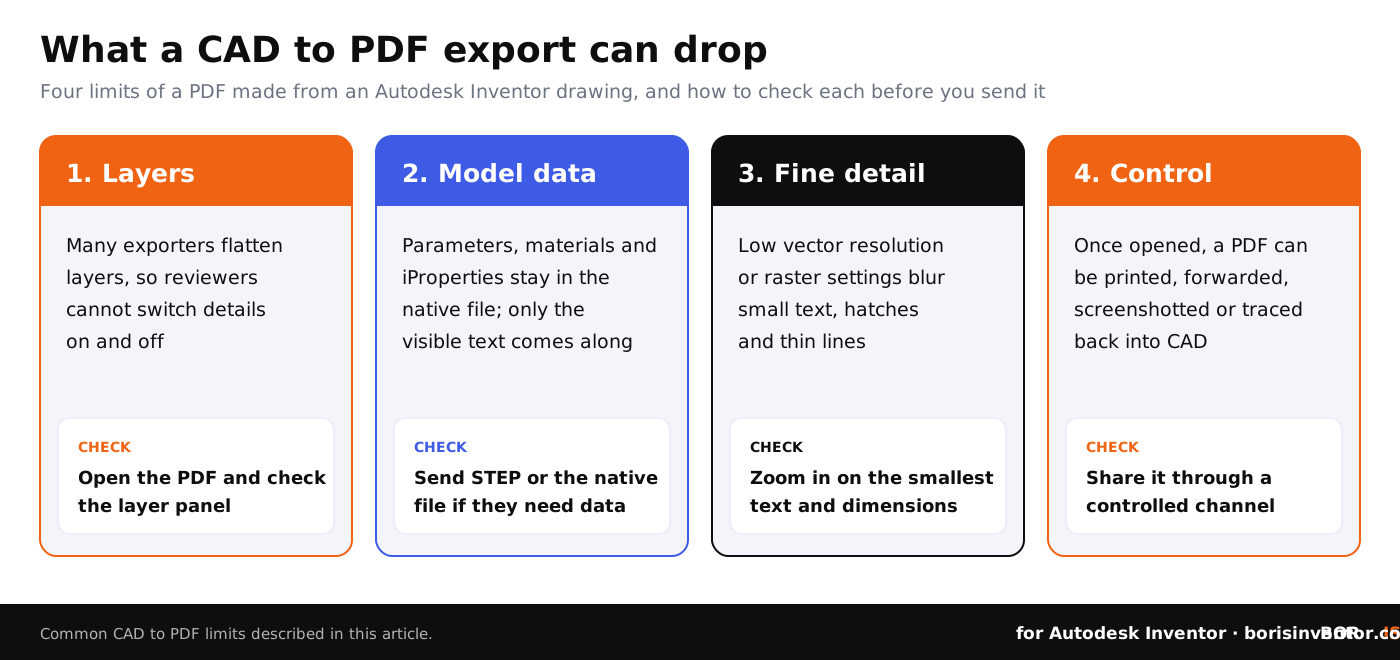
- Loss of Layers and Metadata: Depending on the exporter and its settings, a PDF may flatten layers, and the model data behind the drawing (parameters, materials, iProperties and functional relationships) stays in the native file: only the text that is visible on the sheet comes along.
- Inability to Edit Post-Conversion: Once converted, your design becomes a static document, limiting future tweaks and improvements unless the original CAD file is accessible.
- File Size Reduction at a Cost: Low vector resolution, raster output or aggressive image compression can blur small text, hatches and thin lines, details that are critical for complex manufacturing designs, in favor of smaller file sizes.
- Reduced Security: A PDF exported from Inventor carries no password or usage restrictions by default. PDF tools can add an open password and permission settings, but once a recipient can open the file, they can print, forward or screenshot it, so the PDF itself does little to stop unauthorized redistribution.
Why Is This a Problem for Autodesk Inventor Users?
As one of the most widely used tools in 3D design, Autodesk Inventor is renowned for its ability to manage highly detailed and complex technical drawings. However, the process of converting an Inventor drawing to a PDF can distort the integrity of the original design. Here's why this matters:
- Critical Design Details are Lost: For example, an aerospace engineer sharing designs with a manufacturing partner might find that fine details meant for precise machining are hard to read or missing in the PDF, potentially causing production errors.
- Project Collaboration is Hindered: The inability to toggle layers or interact with metadata in PDFs frustrates cross-functional teams or external reviewers during critical project adjustments.
- IP Theft Risks Increase: The simplified PDF makes it easy for non-experts or bad actors to extract essential elements while ignoring contractual usage boundaries.
Afraid of Losing CAD Security in Conversions?
Discover key strategies to secure CAD files without compromising collaboration. Simplify your workflows.
👉 Explore CAD file formats and security implications
Solutions and Best Practices for CAD to PDF Conversion
Ensuring that your CAD designs translate effectively into PDFs without incurring data loss or risking your intellectual property involves adopting stringent workflows and leveraging the right tools. Here's how Autodesk Inventor users should approach the process:
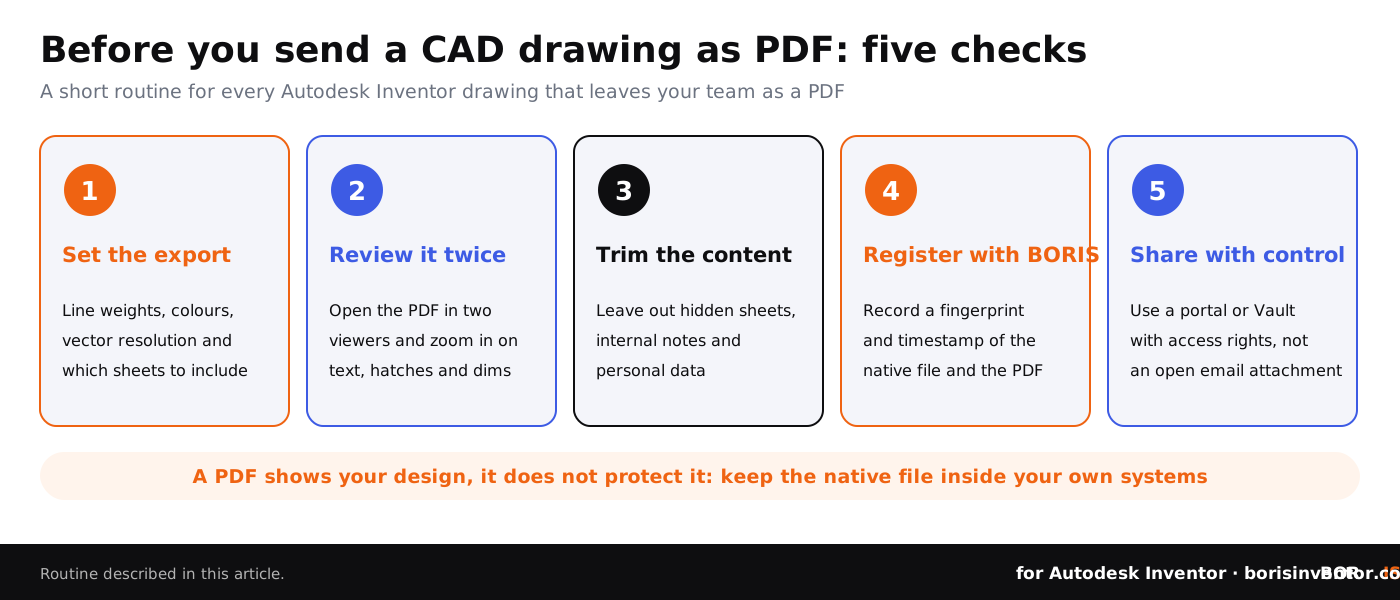
- Check the Export Settings: When exporting a drawing from Inventor, review the PDF options (line weights, colours, vector resolution and which sheets to include) so the PDF stays clear and complete.
- Share Through Controlled Channels: Keep native files in Autodesk Vault or another access-controlled platform, and send PDFs through a portal with access rights rather than as open email attachments. For file-level access control on the native files, CADChain’s tools combine permissions with blockchain proof of ownership.
- Verify Converted Files: Test the output on multiple PDF viewers to ensure consistent reproduction of the design.
- Anchor IP Ownership on Blockchain: Use blockchain-based registration tools like BORIS for Inventor to record a fingerprint and timestamp of the native file, and of the PDF you send, as dated proof of what you designed and when.
Which format you send decides how much of your design leaves the company. The table compares the common options for an Inventor model or drawing:
The European Perspective: Why This Issue Matters Now
In the EU, GDPR applies whenever drawings, title blocks or file metadata contain personal data such as names, signatures or email addresses, and it intersects with trends like Industry 4.0 and distributed manufacturing, amplifying the importance of secure and accurate digital conversions. According to CADChain's Dirk-Jan Bonenkamp, "European companies must balance the demand for collaboration with compliance, placing a firm emphasis on secure data handling practices."
For European SMEs, failing to protect design data during file conversions poses heightened risks, including trade-secret leaks or patent disputes in highly competitive industries like automotive and aerospace. Under the EU Trade Secrets Directive, a design is protected as a trade secret only if you take reasonable steps to keep it secret, and tools like BORIS add dated proof of what you designed and when.
“Think of CAD to PDF conversion not as the last step in design but as a pivotal moment for protecting your IP.”
Dirk-Jan Bonenkamp, Legal Officer at CADChain
Conclusion: Take Control of CAD to PDF Conversions
Whether you're an engineer, designer, or manager, overlooking the complexities of CAD to PDF conversion leaves your work exposed to risks that can damage your reputation, hinder collaboration, and compromise intellectual property. Leveraging tools like BORIS for Inventor, registering your designs with blockchain timestamps, and adhering to conversion best practices are critical steps in safeguarding your digital assets.
As we navigate increasingly collaborative global supply chains, maintaining trust requires technical and legal precision. This naturally leads to the broader conversation of CAD file metadata, privacy concerns, and compliance, topics that require a deep dive into how they shape secure CAD workflows across industries. For what to send to partners in each situation, see CAD file sharing with external collaborators.
Take the Next Step Towards Better CAD Protection!
How do CAD file formats, metadata, and privacy concerns shape collaboration in 2026?
👉 Explore the technical deep dive
People Also Ask:
What are the limitations of PDF to AutoCAD conversion?
PDF import in AutoCAD only recovers vector content: scanned or raster PDFs come in as images, curves may arrive as short segments, text drawn with SHX fonts may arrive as geometry rather than editable text, and very large coordinates, often present in maps, can lose precision. The quality of the original PDF export sets the limit.
Is converting DWG to PDF free?
DWG to PDF conversion can be done without cost using tools like Autodesk DWG TrueView. This free viewer allows users to view, plot, and convert DWG files into PDF format without requiring a full AutoCAD license.
How to convert AutoCAD to PDF with high resolution?
To achieve high-resolution PDF output from AutoCAD, plot or export with a PDF plotter such as AutoCAD PDF (High Quality Print), check the vector and raster resolution in the plotter settings, and keep line weights and plot styles turned on. Preview the result before you send it.
What is the best AutoCAD to PDF converter?
For most users, AutoCAD's own PDF plotters and the free DWG TrueView are enough. Dedicated batch converters, such as AutoDWG DWG to PDF Converter, help when you need to convert many files at once. Online options like Zamzar exist too, but keep confidential drawings off third-party servers.
What causes large PDF file sizes when converting from AutoCAD?
Large file sizes often result from including detailed graphics, embedded raster images, or high DPI settings during export. Complex drawings with multiple layers can also increase file sizes, leading to potential performance concerns.
Can DWG files be converted to PDF without losing details?
Yes, but it depends on the tool and settings used. Ensure the DPI resolution is set high enough, layers are optimized, and all necessary line weights and colors are properly configured before converting DWG to PDF to maintain clarity.
What are common errors in CAD to PDF conversion?
Errors often include missing lines, distorted scaling, incorrect fonts, or skipped layers. Ensuring updated software versions, correct settings, and previewing before finalizing can help reduce these issues.
What can be done if a PDF conversion fails in AutoCAD?
If a conversion fails, check page setup overrides, ensure no unsupported file elements are included, and try alternate PDF plotters. Restarting the software or using a different conversion tool can also solve many issues.
Is it possible to edit a PDF back into a DWG format?
While possible, editing a PDF back into a DWG format is limited by the quality of the original PDF export. Specialized tools like AutoCAD's PDF import can assist, but results may include incomplete details or compromised accuracy.
Why do professionals convert CAD files to PDF?
Professionals convert CAD files to PDF to improve accessibility, streamline sharing, and ensure consistent viewer compatibility. PDFs serve as a universal format that discourages editing while maintaining design intent and clarity.
FAQ on CAD to PDF Conversion Challenges and Best Practices
Why is layer preservation critical during CAD to PDF conversion?
Layer preservation keeps key design details like dimensions, annotations and construction geometry easy to separate after conversion. Losing layers limits stakeholders' ability to analyze critical components, increasing errors during implementation. Exporters that support PDF layers, such as AutoCAD's PDF plotters with layer information switched on, let reviewers turn layers on and off.
Can metadata from CAD designs be retained in PDF files?
Only partly. Title block fields and iProperties that appear on the sheet come across as text, but the model's parameters, materials and properties are not carried as usable data. Keep the native file as the reference, and send a STEP file or a 3D PDF with the properties you choose when recipients need more.
How do encryption limitations affect CAD file security?
Encryption may reduce the usability of CAD files in collaborative environments due to performance trade-offs and compatibility issues. Specialized solutions like those discussed in CAD encryption methods and limitations offer strategies to balance security and functionality effectively.
What are common vulnerabilities in CAD to PDF conversions?
Common vulnerabilities include loss of design fidelity, tampering of static PDFs, and lack of DRM protections. To mitigate these risks, share PDFs through access-controlled channels and register the native file and the PDF you send with BORIS for Inventor; teams working in SOLIDWORKS can use BORIS for SOLIDWORKS in their own secure CAD workflows.
How can engineers ensure collaboration without risking IP theft?
Engineers should use tools that support DRM or IRM for CAD files during format shifts. CADChain's tools combine file-level access control with blockchain proof of ownership, enabling controlled collaboration while safeguarding intellectual property against unauthorized redistribution.
Why should SMEs prioritize DRM solutions for CAD files?
SMEs should implement DRM solutions to maintain control over CAD files when they convert to formats like PDF. Read about the difference between DRM and IRM on DRM in CAD workflows for better contextual insight.
What functionalities should users look for in CAD to PDF converters?
Key functionalities include layer support, control over vector and raster resolution, batch export, and password and permission settings. Solutions should balance preserving design fidelity while ensuring stakeholder accessibility.
Why is blockchain technology valuable for CAD file ownership?
Blockchain gives you a tamper-evident record: BORIS registers a fingerprint (hash) and timestamp of each CAD file version, which is dated proof of what existed and when, even after the design has been converted into formats like PDF. It does not control access to the file. Explore BORIS for Inventor to register your designs.
Can PDF compression compromise manufacturing designs?
Yes, excessive compression may remove intricate details critical for manufacturing workflows. Always test outputs across different PDF viewers and use tools that preserve fidelity while optimizing file size.
How do GDPR and CAD conversions intersect for EU companies?
GDPR applies when drawings, title blocks or file metadata contain personal data, such as names, signatures or email addresses, and it requires appropriate security for that data. Remove personal data the recipient does not need before you export, and share files through access-controlled channels. BORIS stores only a fingerprint of the file, not its contents.