
Every Autodesk Inventor assembly already contains a bill of materials. Purchasing, production planning and costing need that same list, but they work in an ERP system such as SAP, abas, eEvolution, caniasERP or Microsoft Dynamics. When the two worlds are not connected, somebody retypes part numbers, quantities and descriptions, and every retyped line is a chance for a wrong part to be ordered or built. This guide explains what an Inventor ERP integration actually moves, the five ways to set one up, which connectors exist for the ERP systems engineers ask about most, and how to plan the project so the BOM in the ERP matches the model in Inventor.
TL;DR: Autodesk Inventor does not talk to an ERP on its own. Most companies connect them through Autodesk Vault: Inventor files are checked in, released data (items and BOMs) is handed to the ERP by a connector, and item numbers, stock or prices come back. You can start with a manual BOM export to Excel, use Vault Professional's ERP export, install your ERP vendor's CAD add-on (abas and SAP have one for Inventor), buy a Vault-to-ERP connector or middleware (for example coolOrange powerGate, entegra or AURON CAD2ERP, which list eEvolution, caniasERP, abas, SAP and others), or write your own with the Inventor and Vault APIs. Decide first which system owns each field, and send only released data.
What does Inventor ERP integration actually mean?
An Inventor ERP integration is any repeatable way of getting design data out of Inventor (and usually Vault) into the ERP system, and getting business data back. It is not about putting CAD files into the ERP. It is about items and bills of materials.
- Engineering BOM (EBOM): the BOM Inventor builds from your assembly structure. It shows how the product is designed.
- Manufacturing BOM (MBOM): the BOM the ERP uses to buy, stock and build. It may add packaging, raw material, consumables and routings, and group parts the way the shop floor assembles them.
- Item master: the ERP list of every part number with its unit, make-or-buy flag, supplier and cost.
The integration links the first to the other two. A good one keeps the engineering BOM in Inventor and Vault as the design truth, creates or updates ERP items from it, and lets planners build the manufacturing BOM without retyping. For the basics of how Inventor structures assemblies, see what assembly files in Autodesk Inventor are and our guide to Autodesk Inventor file types.
What data moves between Inventor, Vault and the ERP?
Before you choose a tool, list the data. In almost every project it looks like this:
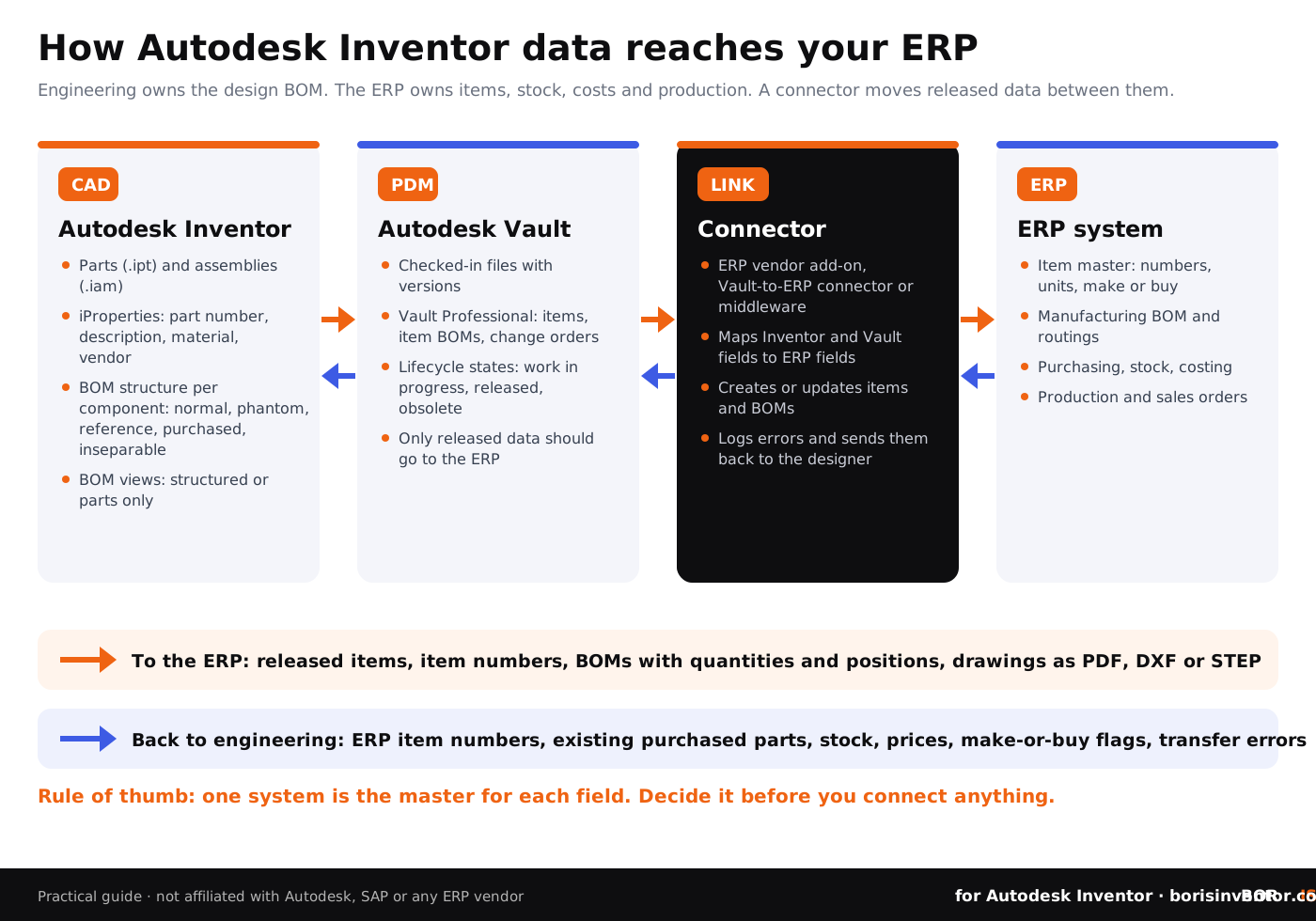
- From Inventor: part number, description, material, vendor and other iProperties; quantities; the BOM structure of each component; drawings exported as PDF, DXF or STEP.
- From Vault: the released revision, lifecycle state, and in Vault Professional the item record and item BOM.
- From the ERP back to engineering: official item numbers, whether a purchased part already exists, stock, price, make-or-buy, and error messages when a transfer is rejected.
Inventor gives every component a BOM structure: normal, phantom, reference, purchased or inseparable. Autodesk's help explains that phantom components pass their children up a level, reference components are left out of quantities, purchased assemblies appear as one line, and inseparable assemblies (for example press-fit parts) stay together as one item. Those settings decide what the ERP receives, so fix them in Inventor before you connect anything. The BOM itself has a structured view (levels, like the assembly) and a parts only view (a flat list). Most ERPs want the structured view for production and the parts-only view for purchasing.
Five ways to connect Autodesk Inventor to an ERP
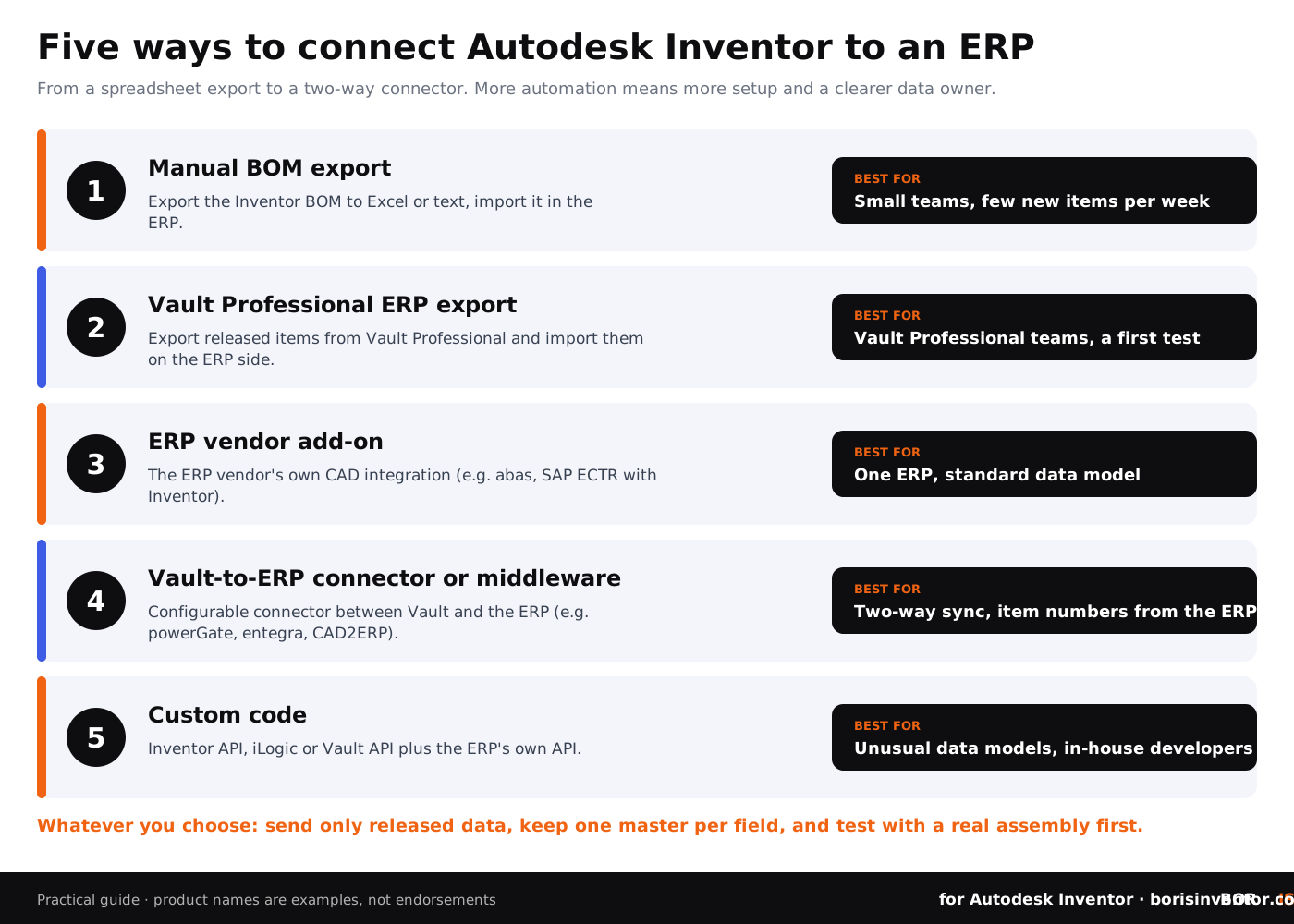
Small teams that create a handful of new parts a week often live well with option 1, as long as there is a rule for when and from which revision the export happens. Once several designers release data every day, options 3 and 4 pay off, because the connector checks the data instead of a person. Option 5 suits companies that already write Inventor automation with iLogic, add-ins and the API; the architecture choices are covered in advanced plugin architectures for Inventor integrations and in our Autodesk Inventor plugin development guide.
Which connectors exist for SAP, abas, eEvolution, caniasERP and other ERP systems?
Search data shows engineers look for an integration with one specific ERP. Here is what the vendors themselves say today. We checked each product page; we did not test the connectors, so ask for a demo with your own assembly.
SAP and Autodesk Inventor
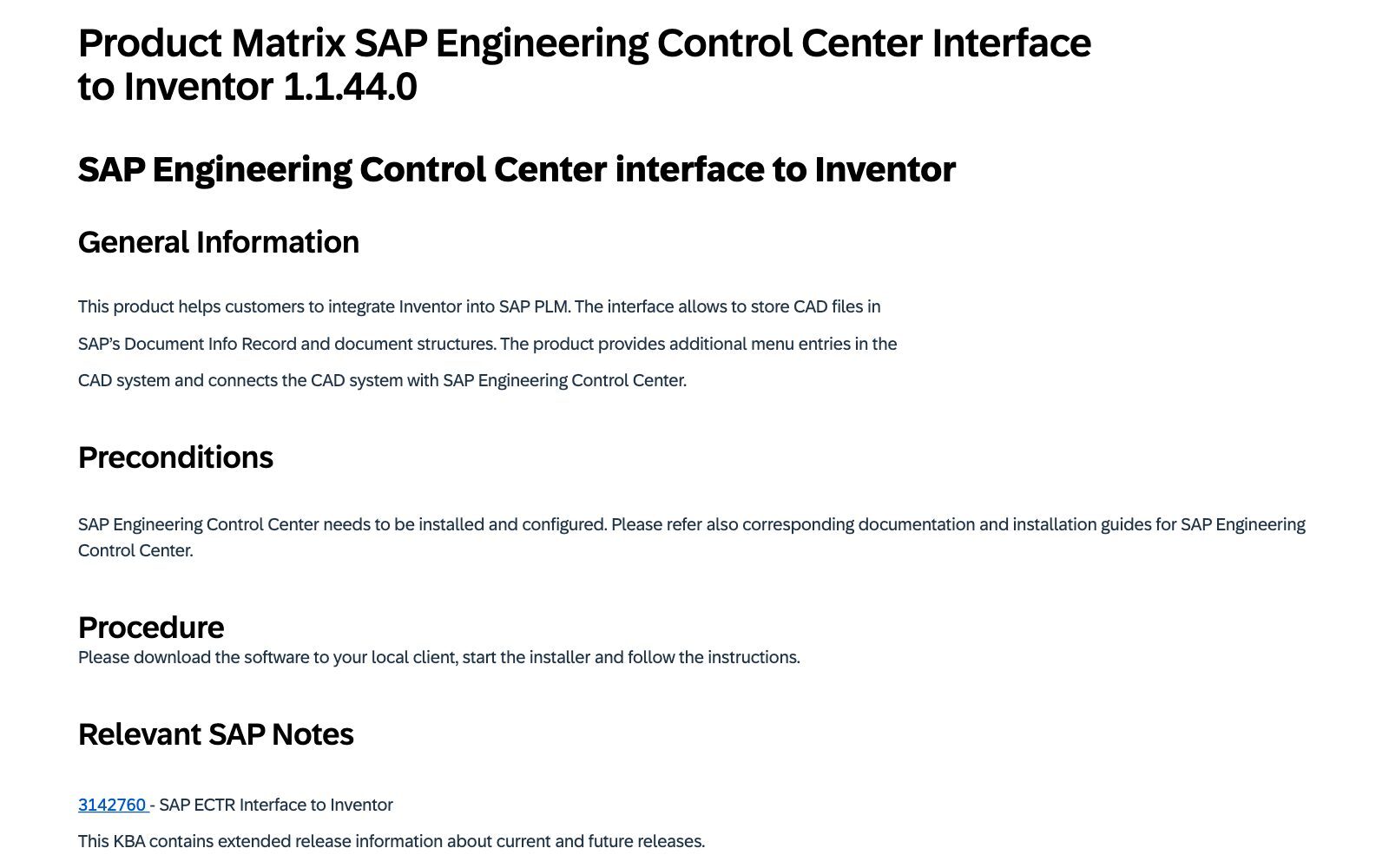
SAP publishes an SAP Engineering Control Center interface to Inventor. According to SAP, it adds menu entries to Inventor, connects it with SAP Engineering Control Center and stores CAD files in SAP document info records and document structures. Its availability matrix lists Inventor 2025 and 2026, with Inventor 2027 added in later support packages, on Windows 11. Vault-based middleware is the other common route: coolOrange names SAP among the systems powerGate connects to Vault and Inventor, and entegra and AURON list SAP for their connectors.
abas ERP and Autodesk Inventor
abas describes a CAD integration add-on that uses the abas ERP API and works with SolidWorks and Autodesk Inventor. Engineers map CAD BOM columns to abas fields once, the mapping is saved as an .xml file that can be copied between workstations, and users can transfer only part of a BOM by ticking the lines they need. Fields abas needs but the CAD BOM lacks can be filled with constants. For a Vault-based setup, entegra and AURON both list abas among the ERP systems their connectors already link to Inventor and Vault.
eEvolution and Autodesk Inventor
We found no Inventor add-in published by eEvolution itself. entegra lists eEvolution among the ERP systems its Inventor and Vault connector has already been implemented with. That connector is built on Vault Professional, exchanges data by XML file or a REST API with JSON, creates and updates articles in both directions and transfers CAD BOMs with position numbers. If you run eEvolution, ask eEvolution and its partners which route they support for your release.
caniasERP and Autodesk Inventor
caniasERP's own module page says a connection with a CAD software system can be set up for material and BOM changes, so design changes can update caniasERP records. It does not name Inventor. entegra lists canias ERP among the systems its Inventor and Vault connector has been implemented with. As with eEvolution, confirm the exact interface with the vendor before you plan around it.
Microsoft Dynamics, Business Central and other ERP systems
coolOrange names Microsoft Dynamics, Oracle and Odoo next to SAP for powerGate; AURON lists Microsoft Dynamics and Business Central, proALPHA, ISAH and Sage among others; entegra's list also includes Apollo PPS/ERP, avista.ERP, infor, PSIpenta, Silver ERP, IFS Applications and SYSPRO. In other words, most mid-market ERP systems used by Inventor shops already have at least one Vault-based connector. The differences are in the details: whether item numbers come from the ERP, how BOM changes are compared, and how errors reach the designer.
How to plan an Inventor ERP integration in 8 steps
- Map the process. Who creates a new part number, when is a part released, and when does production need the BOM?
- Choose one master per field. Item number, description, material, unit and make-or-buy each get one owning system. The ERP usually owns item numbers and costs; Inventor owns geometry, quantities and BOM structure.
- Clean the Inventor side. Consistent iProperties, correct BOM structure per component, purchased parts flagged as purchased. iLogic rules can fill and check iProperties automatically.
- Put files in Vault with lifecycle states, so only released revisions move on. See Inventor Vault setup and management tips.
- Pick the integration option from the table above and ask the vendor which Inventor, Vault and ERP releases it supports.
- Write the field mapping down: every Inventor or Vault property, its ERP field, format and length limit.
- Test with a real assembly, including phantom subassemblies, Content Center parts, sheet metal and a revision change.
- Train and monitor. Designers need to see transfer errors; planners need to know which BOM revision they are building.
Prepare Inventor before you connect it to the ERP
Most integration problems start in the model, not in the connector. Check these points first:
- Part numbers: every component has one, and the naming rule is agreed. Our post on CAD file naming conventions helps here.
- BOM structure: fasteners and Content Center parts as purchased, weldments or press-fit groups as inseparable, grouping subassemblies as phantom, helper geometry as reference.
- Units and quantities: raw material such as tube or sheet often needs a length or area quantity, not a count.
- Revisions: a clear rule for when a change creates a new revision, as explained in how to manage CAD file revisions across teams.
- Manual export, if you start there: open the Bill of Materials dialog from the Assemble tab, choose Export Bill of Materials, pick the structured or parts-only view and the file type, and save. iLogic can do the same in a rule, which is handy for a nightly export. Older tricks are collected in Inventor macros and scripts.
Then plan for change. When an engineer revises a released part, the ERP must learn about it without breaking open orders. Read design change management in engineering and how to track design changes in Autodesk Inventor before you define the change workflow.
Common Inventor ERP integration problems
- Two systems create item numbers, so the same bolt exists twice in the ERP.
- Work-in-progress revisions reach the ERP and get ordered.
- Phantom and reference components are set wrongly, so quantities in the ERP are off.
- The connector is updated for a new Inventor release months after the CAD upgrade.
- Error messages land in a log file nobody reads instead of reaching the designer.
- Everyone exports the full native model when the ERP only needs a BOM and a PDF or STEP.
Autodesk's ERP and Vault Professional help topic is a good reminder of the basic rule: export only released or obsolete items, and tell the ERP team what was sent.
Engineering data leaves engineering: protect the design behind the BOM
An ERP integration widens the circle of people and systems that see your design data. Purchasing sends drawings to suppliers, planners share BOMs with subcontractors, and the ERP itself becomes a target, as the Clop PLM data leak showed. Keep Vault permissions tight (see Inventor PDM security), send neutral formats instead of native files, and follow the steps in CAD file protection for Inventor parts and drawings and manufacturing IP and supply chain security.
Prove which design came first, before the BOM goes out
BORIS for Autodesk Inventor registers a fingerprint of your parts, assemblies and drawings with a blockchain timestamp, straight from Inventor, and gives you a verifiable certificate of ownership. It does not replace Vault or your ERP; it adds dated proof of what you designed and when, which helps when a supplier later claims the design is theirs.
👉 Try BORIS for Autodesk Inventor
Learn how the proof works in digital fingerprints for CAD files. Running SOLIDWORKS as well? The SolidBoris guide to version control integration with PDM systems covers the PDM side for SOLIDWORKS teams.
Conclusion
An Autodesk Inventor ERP integration is really a BOM and item integration. Inventor builds the engineering BOM, Vault decides what is released, and a connector turns released data into ERP items and BOMs while item numbers and stock flow back. Start by cleaning iProperties and BOM structures, decide which system owns each field, and choose the simplest option that removes retyping: a manual export, Vault Professional's ERP export, your ERP vendor's add-on, a Vault-to-ERP connector or your own code. For SAP and abas there are vendor add-ons for Inventor; for eEvolution, caniasERP and many other ERP systems, Vault-based connectors are the usual route. For the wider picture, see Industry 4.0 for manufacturing with Autodesk Inventor and CAD data lifecycle management.
FAQ: Autodesk Inventor ERP integration
Can Autodesk Inventor connect directly to an ERP system?
Not out of the box. Inventor can export a BOM to a spreadsheet or text file, and some ERP vendors (abas, SAP) offer their own add-ins for Inventor. Most automated integrations run through Autodesk Vault and a connector.
Do I need Autodesk Vault for an Inventor ERP integration?
Not for a manual BOM export, and not always for an ERP vendor add-on. Most two-way connectors, such as powerGate, entegra or AURON CAD2ERP, require Vault, and Vault Professional adds items and item BOMs that map well to ERP items.
How do I export a BOM from Inventor for my ERP?
Open the Bill of Materials dialog from the Assemble tab, choose Export Bill of Materials, select the structured or parts-only view and the file type, and save. iLogic can run the same export from a rule.
Is there an eEvolution Inventor integration?
We found no add-in from eEvolution itself, but entegra lists eEvolution among the ERP systems its Inventor and Vault connector has been implemented with. Ask eEvolution and its partners which interface fits your release.
Does abas ERP integrate with Autodesk Inventor?
Yes. abas describes a CAD integration add-on that uses the abas ERP API and works with Autodesk Inventor and SolidWorks, with reusable field mapping and partial BOM transfer. Vault-based connectors from entegra and AURON also support abas.
Is there a caniasERP interface for Inventor?
caniasERP says it can connect to a CAD system for material and BOM changes but does not name Inventor on that page. entegra lists canias ERP among the systems its Inventor and Vault connector has been implemented with.
How does SAP integrate with Autodesk Inventor?
Through the SAP Engineering Control Center interface to Inventor, which stores CAD files in SAP document structures and adds SAP menu entries to Inventor, or through Vault-based middleware such as coolOrange powerGate.
Should the ERP get the structured or the parts-only BOM?
Usually both: the structured view for production and assembly, the parts-only view for purchasing. Set BOM structure (phantom, purchased, inseparable, reference) correctly first, because it changes both views.
Who should own item numbers, Inventor or the ERP?
Pick one. Many companies let the ERP issue item numbers and send them back to Vault and Inventor, so a purchased part never exists twice.