
If you have spent any time in Autodesk Inventor forums, you have seen the word iLogic in almost every thread about automation, configurators and design standards. But what is iLogic, exactly, and do you need to be a programmer to use it? This beginner guide explains what iLogic is in Autodesk Inventor, what its parts do (rules, parameters, snippets, forms, event triggers and external rules), where to find it, and how to write your first iLogic rule in a few minutes. It also covers what is new in Inventor 2026 and 2027, from the Before Vault Check-In trigger to Codeblocks and Autodesk Assistant.
TL;DR: iLogic is the rules-based design automation tool built into Autodesk Inventor. A rule is a small VB.NET program that reads and changes parameters, features, components and iProperties, so the model follows your design logic (for example: if the plate is longer than 500 mm, make it 8 mm thick). Rules live inside part, assembly and drawing files, or as external rule files; they run when a parameter changes, on events such as save, from a form button, or by hand. You start on the Manage tab, iLogic panel, Add Rule. Since Inventor 2027 you can also build rules with drag-and-drop Codeblocks.
What is iLogic in Autodesk Inventor?
iLogic is Autodesk Inventor's built-in toolset for rules-based design automation. Autodesk's help describes a rule as a small Visual Basic (VB.NET) program that can monitor and control Inventor parameters, features or components, and iLogic embeds those rules as objects directly in part, assembly and drawing documents (see About Rules and Forms in iLogic in the Inventor 2026 help).
In plain words: parameters and equations already make an Inventor model parametric. iLogic adds decisions on top of them. A parameter can say "Thickness = 5 mm"; an iLogic rule can say "if the load is heavy, use 8 mm, switch on the ribs, swap the bolt size and write the new part number". That is why engineers use iLogic for product configurators, company standards and repetitive clean-up work that would otherwise take hours of clicking.
You do not need to install anything. iLogic sits on the Manage tab of the Inventor ribbon, in the iLogic panel. New to Inventor itself? Start with what Autodesk Inventor software is and how assembly files work in Inventor.
What can you do with iLogic?
Most iLogic work falls into five groups:
- Configure products. One master model becomes many variants: lengths, hole patterns, options switched on or off, components swapped by size.
- Enforce standards. Rules check materials, iProperties, file names or sheet sizes and warn or fix before the file is saved or checked in.
- Fill in data. Part numbers, descriptions, stock numbers and custom iProperties get written the same way every time.
- Automate drawings and exports. Rules can update drawing views and export PDF, DWG, DWF or STEP files after a save.
- Build simple input screens. iLogic forms let colleagues change a design through dropdowns and fields, without touching the model tree.
For a wider view of Inventor automation, including add-ins and the Inventor API, read Autodesk Inventor automation with iLogic, add-ins, the API and Autodesk Assistant.
The building blocks of iLogic
iLogic has a handful of parts. Once you know what each one does, the rest of the tool makes sense. The table sums them up.
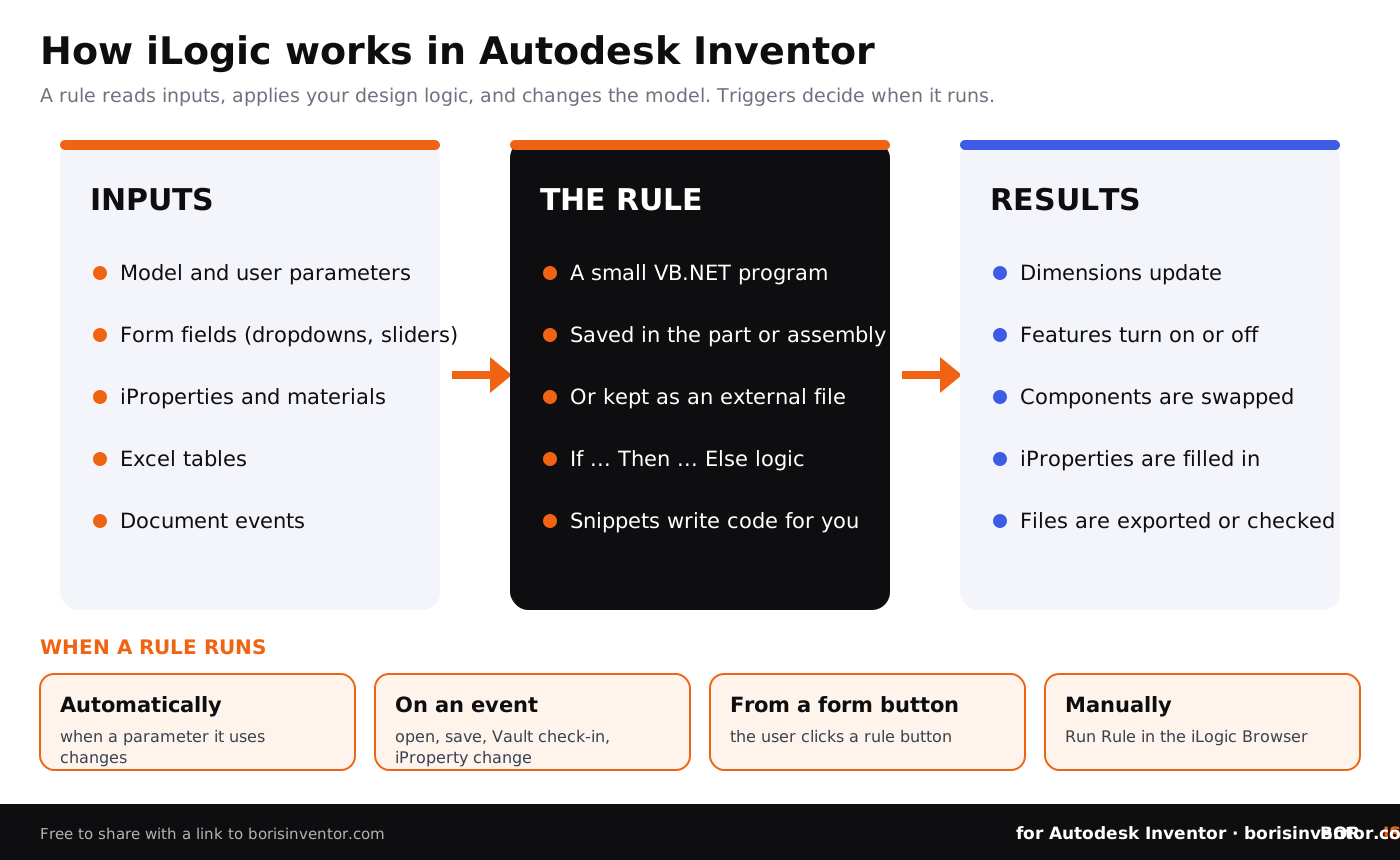
Where is iLogic in Inventor?
Everything starts on the Manage tab of the ribbon. The iLogic panel holds the commands a beginner needs:
- Add Rule creates a new rule in the active document and opens the Edit Rule dialog.
- iLogic Browser opens the panel with the Rules, Forms, Global Forms and External Rules tabs.
- Event Triggers opens the dialog where you attach rules to document events.
The iLogic settings, such as the folders iLogic searches for external rules and the security options, are under Tools, iLogic, iLogic Configuration.
How to create your first iLogic rule, step by step
The example below makes a simple plate smarter: when the plate gets longer, it gets thicker. You need a part with an extruded rectangle whose length and thickness are driven by parameters.
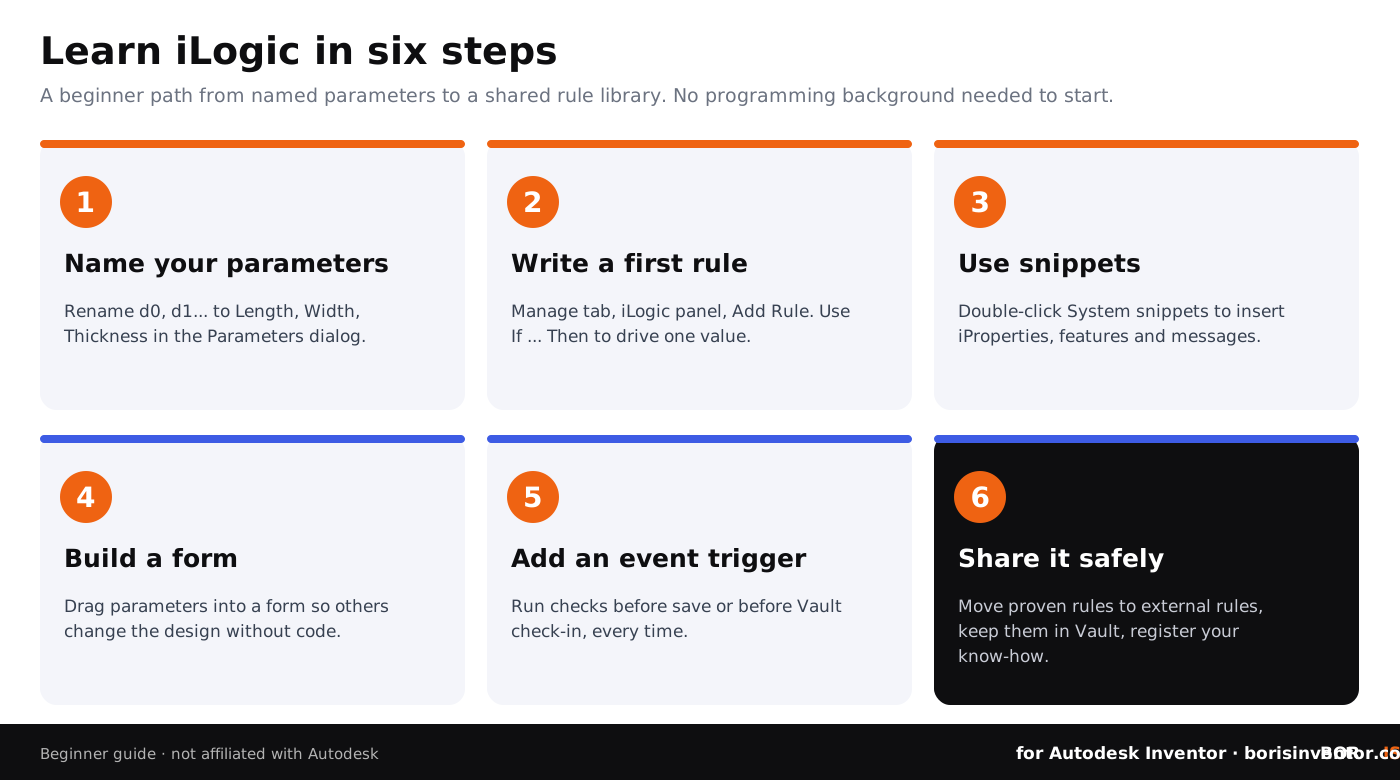
- Name your parameters. Open Manage, Parameters and rename the dimension parameters, for example d0 to Length and d1 to Thickness. Clear names make rules readable and keep them working if you add features later.
- Add a rule. On the Manage tab, in the iLogic panel, click Add Rule, type a name such as PlateThickness and click OK. The Edit Rule dialog opens.
- Insert the parameters. On the Parameters tab of the dialog, double-click a parameter to insert its name into the rule text, so you never mistype it.
- Write the logic. Type the rule below, or build it from the editing toolbar above the text area, which inserts If ... Then blocks, keywords and operators for you.
- Save and run. Click Save & Run. Change Length in the Parameters dialog and watch Thickness follow. Because the rule uses Length directly as a variable, it runs again automatically each time Length changes.
Numbers in a rule use the document units, so in a millimetre part 8 means 8 mm. Units can also be written in a rule the same way as in parameter equations.
Two more beginner iLogic rules
Turn a feature on or off. Rename the fillet in the model browser to EdgeFillet first, because default names such as Fillet1 are easy to break. Then a rule can suppress it on short plates:
Fill in an iProperty. This rule writes a description from the parameter values and shows a message, both from the System snippets list:
Ready for loops, functions and assembly-wide rules? Continue with advanced iLogic programming for Inventor automation and Inventor macros and scripts with VBA and iLogic.
How do iLogic rules run?
A rule can start in four ways:
- Automatically on a parameter change. A rule that uses a parameter directly as a variable runs when that parameter changes. External rules do not run this way.
- On an event. In the Event Triggers dialog you attach rules to events. Inventor 2026 lists New Document, After Open Document, Before Save Document, After Save Document, Before Vault Check-In, Close Document, Any Model Parameter Change, iProperty Change, Feature Suppression Change, Part Geometry Change, Material Change, Component Suppression Change, iPart or iAssembly Change Component and Drawing View Change (see the Event Trigger Reference).
- From a form. A button on an iLogic form runs the rule it is linked to.
- By hand. Right-click the rule in the iLogic Browser and choose Run Rule, or Regenerate Rule to sync parameters first.
A rule you do not want to fire on its own can be suppressed in the Options tab of the rule editor or from the iLogic Browser. Suppressed rules still run when you start them by hand.
New in Inventor 2026: Before Vault Check-In. A rule on this event can check files before they go into Autodesk Vault and cancel the check-in if something is missing. It can verify values but not change them, and a rule error also cancels the check-in. It is a simple way to stop files without a part number or the right material from reaching Vault. More on Vault in Inventor Vault setup and management tips.
iLogic forms: a user interface without code
Forms are where iLogic becomes useful for the whole team, not only for the person who wrote the rules. You drag parameters, iProperties and rule buttons into a form editor and arrange them as text boxes, dropdowns, sliders and buttons. Autodesk notes that you do not need any rules to create a form, so a form that only exposes a few well-named parameters is a perfectly good first step.
- Document forms are stored in the file and appear on the Forms tab of the iLogic Browser.
- Global forms are stored outside Inventor and appear on the Global Forms tab whatever document is open. iLogic does not reload files changed on disk by itself, so right-click and choose Refresh after editing them.
Internal or external rules: which should you use?
Rules stored in a document travel with that file. External rules are text or VB files outside any document that you can run by hand, call from other rules, or attach to event triggers.
- Use internal rules for logic that belongs to one design, such as a configurable bracket.
- Use external rules for company-wide tasks: exports, naming checks, title block updates. One fix updates every project, and you do not copy the same code into hundreds of files.
- Keep the external rules folder in Vault or another controlled location with version history, so you know which version of a rule produced which files. See how to track design changes in Autodesk Inventor and what CAD version control is.
What is new: Codeblocks and Autodesk Assistant
Codeblocks (Inventor 2027). Autodesk introduced Codeblocks for iLogic in Inventor 2027 as a visual way to write rules: you connect blocks that stand for parameters, conditions and actions instead of typing script, and the underlying iLogic code is shown in real time. For beginners it is the easiest way in, and reading the generated code is a good way to learn the syntax.
Autodesk Assistant (Inventor 2027 and 2027.2). The AI assistant in Inventor can list, read, create, run and delete iLogic rules, and Autodesk says it scans a rule for potentially risky APIs and asks before running flagged code. In Inventor 2027.2 it also works with event triggers, for example creating a rule that runs on save and checks a design against company standards. Read what this means for your data in Inventor 2027.2, the local MCP server and AI agents editing your models and Autodesk Inventor AI after AU 2026.
Whichever way a rule is written (typed, assembled from blocks or generated by AI), it is still an iLogic rule. Review it before you trust it with production files.
iLogic rules are design know-how: protect them
A good set of iLogic rules holds years of engineering decisions: sizing logic, material choices, supplier part numbers, company standards. Treat it like the design itself.
- Native files carry their rules. Rules are embedded in parts, assemblies and drawings, so sending a native Inventor file also sends the logic inside it. Share simplified models or neutral formats when the recipient does not need the rules; see CAD file protection for Inventor teams.
- Only run rules you trust. A rule is code that runs on your workstation. Inventor 2026 switched on the option "Inspect rules for malicious code" by default (Tools, iLogic, iLogic Configuration, Security Options). Keep it on, and be careful with rules and add-ins from unknown sources; the trojanized extension case shows how automation tools can become an attack path.
- Keep dated proof. If a former employee or a partner later claims your configurator logic, you need evidence of which files existed when. Automating CAD file registration in Inventor and digital fingerprints for CAD files explain how.
Protect the designs your iLogic rules produce
BORIS for Autodesk Inventor registers your Inventor files with a timestamp on the blockchain, straight from Inventor, and gives you a verifiable certificate you can share as a link or PDF. It is dated proof of what you designed and when.
👉 Try BORIS for Autodesk Inventor
Common iLogic beginner mistakes
- Writing rules against default names (d0, Extrusion1, Fillet1) that change or break when the model is edited.
- Putting the same rule into dozens of files instead of one external rule.
- Forgetting that a rule using a parameter directly runs again every time that parameter changes, which can make models slow.
- Changing a document in a rule on the Close Document event, which Autodesk advises against.
- Running rules downloaded from forums or generated by AI without reading them first.
- Keeping rules only on one engineer's PC, with no version history.
Speed matters too: see Autodesk Inventor workflow optimization for engineers.
Where to go next
- Top 9 steps to master advanced iLogic programming
- Inventor macros and scripts: VBA and iLogic
- Build your first add-in with the Autodesk Inventor API
- Autodesk Inventor plugin development guide
- How to manage CAD projects in Autodesk Inventor
- Machine learning in CAD: how AI is changing engineering design (CADChain)
Conclusion
iLogic is the part of Autodesk Inventor that turns a parametric model into a design that makes its own decisions. Rules written in VB.NET read and change parameters, features, components and iProperties; forms give everyone a simple way in; event triggers run checks at the right moment; and external rules spread one good idea across every project. Start small: name your parameters, write one If ... Then rule, add a form, then a Before Save check. With Codeblocks and Autodesk Assistant in Inventor 2027 the first step is easier than ever, and the logic you build is worth protecting like the designs it creates.
FAQ: iLogic in Autodesk Inventor
What is iLogic in Autodesk Inventor?
iLogic is Inventor's built-in rules-based design automation tool. Rules are small VB.NET programs, stored in part, assembly and drawing files or as external files, that read and change parameters, features, components and iProperties.
Is iLogic free with Inventor?
iLogic is part of Autodesk Inventor, on the Manage tab in the iLogic panel. You do not buy or install it separately.
What programming language does iLogic use?
iLogic rules are written in Visual Basic .NET (VB.NET), with extra iLogic functions for parameters, iProperties, features and components. Snippets insert most of that code for you, and in Inventor 2027 Codeblocks let you build rules visually.
Do I need to know programming to use iLogic?
No. Simple rules are a few lines of If ... Then logic, snippets and wizards write much of the code, and forms need no rules at all. Programming knowledge helps once you automate whole assemblies or drawings.
What is the difference between iLogic and VBA in Inventor?
iLogic rules are stored in Inventor documents or external rule files and can run automatically on parameter changes and events. VBA macros are a separate, older way to script Inventor through its API. For larger tools, developers build add-ins with the Inventor API.
What are iLogic external rules?
External rules are iLogic rules saved as text or VB files outside any Inventor document. You run them by hand, from other rules or from event triggers, which makes them ideal for company-wide tasks.
What are iLogic event triggers?
Event triggers run chosen rules when something happens in a document, such as New Document, After Open, Before Save, After Save, Before Vault Check-In, iProperty Change or Material Change. You set them on the Manage tab, iLogic panel, Event Triggers.
What are iLogic Codeblocks?
Codeblocks, introduced in Inventor 2027, are a visual way to build iLogic rules by connecting drag-and-drop blocks for parameters, conditions and actions, while the matching iLogic code is shown in real time.
Can Autodesk Assistant write iLogic rules?
Yes. In Inventor 2027 and later, Autodesk Assistant can create, read and run iLogic rules from a prompt, and in 2027.2 it also works with event triggers. Always review a generated rule before using it on production files.